

One-click recording
Start a recording from the browser with a single action. The homepage describes a one-click flow that begins inside the meeting instead of requiring a separate recorder workflow.

RecordMeeting is a browser-based tool for recording and transcribing Google Meet calls, with support for Zoom and Microsoft Teams, plus AI notes and private workspace sharing.
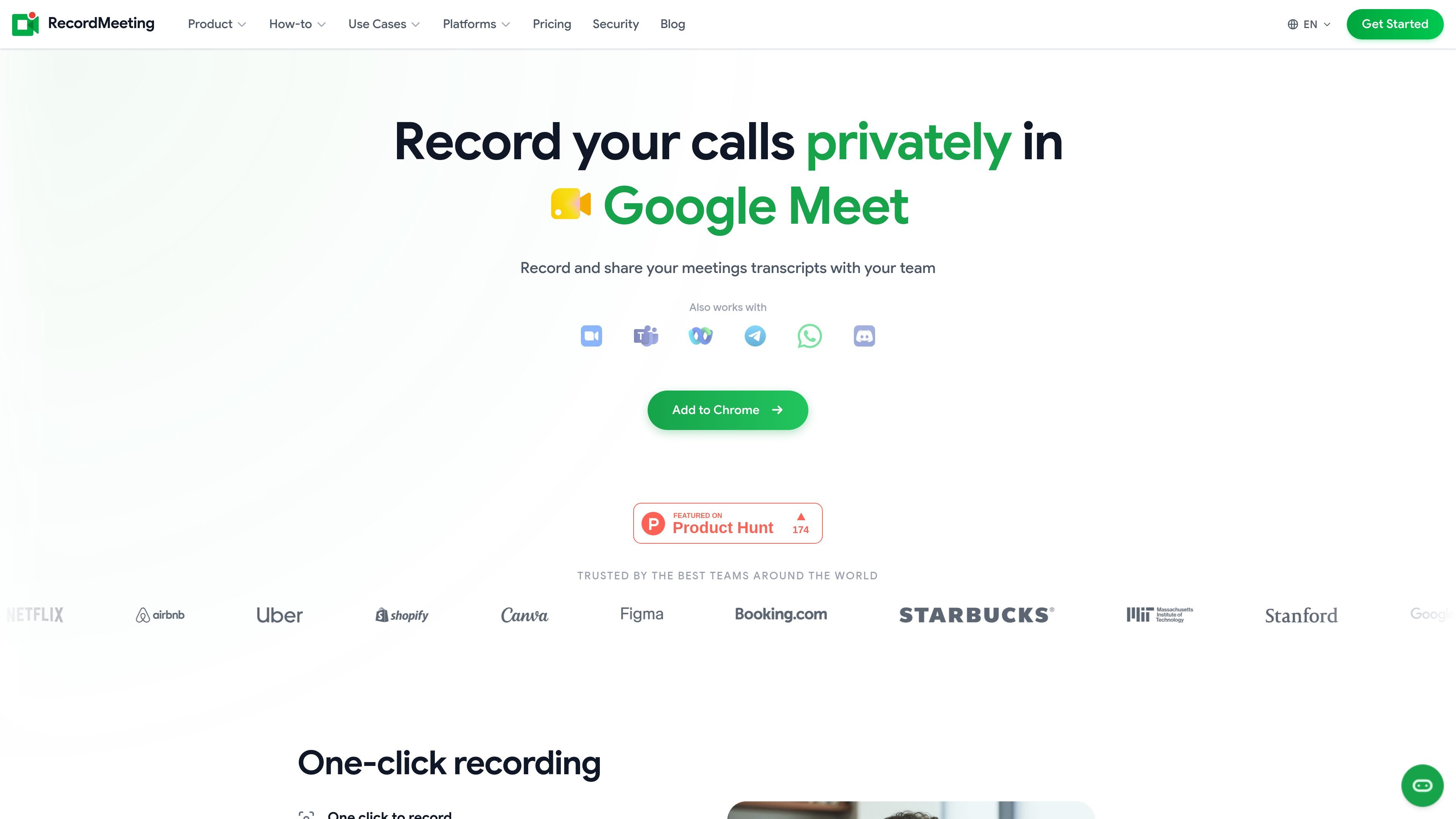
RecordMeeting is a browser-based meeting recording and transcription product for Google Meet, with additional support shown on the site for Zoom and Microsoft Teams. It is positioned around one-click capture, private recording, and automatic transcripts so teams can review conversations after the call.
The product’s main workflow is to start recording inside the meeting, keep the capture out of the participant list, and then receive a transcript plus AI-generated notes. The site also says recordings can be shared by link, grouped for team or project access, and managed from a private workspace.
Pricing information shows Free, Pro, and Enterprise plans. The Free plan is limited to 5 recordings and up to 1 hour per recording, while paid plans increase the recording limit and duration and add team-oriented controls for larger groups.
Start a recording from the browser with a single action. The homepage describes a one-click flow that begins inside the meeting instead of requiring a separate recorder workflow.
Record without adding visible bots to the participant list. The homepage and Zoom page both emphasize background recording with no bots joining the call.
Capture a transcript automatically as the meeting runs. The product pages describe full transcription, with Zoom-specific copy calling out language detection, speaker labels, and timestamps.
Generate AI summaries and action items after the meeting. The homepage and Zoom page both describe short post-call summaries that help users review decisions and follow-ups.
Keep meetings organized and shareable. The site says recordings can be shared by link, grouped by team or project, and controlled by view, comment, or download permissions.
Use the product on mobile as well as desktop. The homepage says recordings sync to the cloud and are available on any device, with feature parity on mobile.
Capture recurring Google Meet calls and review the transcript afterward to pull out decisions, action items, and key quotes without taking manual notes during the meeting.
Record Zoom meetings from the browser when the host does not offer recording or when the meeting runs on a free account, then share the transcript with teammates after the call.
Store client conversations in a private workspace so project teams can share a link, revisit what was agreed, and keep meeting history organized by folder or project.
Use the transcript and AI summary to review interviews or sales conversations after the fact, making it easier to search for specific answers and compare follow-up items.
Let participants start and manage recordings from a phone, then access the same recordings later on desktop with cloud sync.
RecordMeeting is designed to start from a Chrome browser while you are in a supported meeting platform, beginning with Google Meet and also working with Zoom and Microsoft Teams according to the pricing and platform pages. The source material shows a one-click recording flow, but it does not document every setup step in detail.
The source shows that recordings include a full transcript, and the homepage says AI summaries and action items are generated after the call. On the Zoom page, transcripts are described as supporting speaker labels and timestamps, and the testimonials mention Google Docs output, but the exact export options are not fully documented across all platforms.
Yes. The pricing page includes a Free plan for individuals, a Pro plan, and an Enterprise plan for teams. Enterprise adds organization, folder, team management, and shared billing features.
The site says recordings can be shared by link, and access can be controlled so viewers can comment or download depending on permission settings. Team organization by project or folder is mentioned on the homepage and pricing page.
The pricing page says the Free plan is limited to 5 recordings and up to 1 hour per recording. Pro and Enterprise increase the recording length to up to 6 hours and remove the free-plan cap, but the source does not describe every limitation beyond those plan details.

Minutes is an AI note taking and transcription app for meetings, lectures, and recordings. Turn live audio, files, or YouTube links into notes, transcripts, and summaries.

讯飞会议 cloud video conferencing for enterprise collaboration, with video meetings, AI transcription and translation, and automatic meeting notes. Public and private cloud.

闪念贝壳 is an AI voice notes app to quickly capture ideas by voice, then organize, summarize, and expand them with AI.

NeverCap AI transcription tool for audio and video to editable text, with batch uploads, speaker labels, timestamps, and 100+ languages.

Gloww is a browser-based interactive video meeting and webinar tool for teams, educators, and event hosts. Sunsetted July 1, 2025.

Transkrip.com is an AI transcription tool for audio and video to text, focused on Bahasa Indonesia, long files, and per-file pricing.